How to read your month-end cash flow and profit
At month-end, open Finance to see cash flow and net profit for the period, then open Analytics to see the revenue trend and your top clients. Cash flow tells you what the month left in the shop. Profit tells you what is left after the cost of what you sold and your running costs. This guide goes through both, plus the two lists that show who owes you and who you owe.
 Watch it · 1:34Month-end reports: cash, profit and trendsSeason 2, Episode 9
Cash flow: what the month left you
In Finance, click Cash. The headline is cash in minus cash out, with the money in and the money out beside it. Below it, the Cash flow statement splits the month: money in from sales, orders and the till, and money out on purchases and expenses.
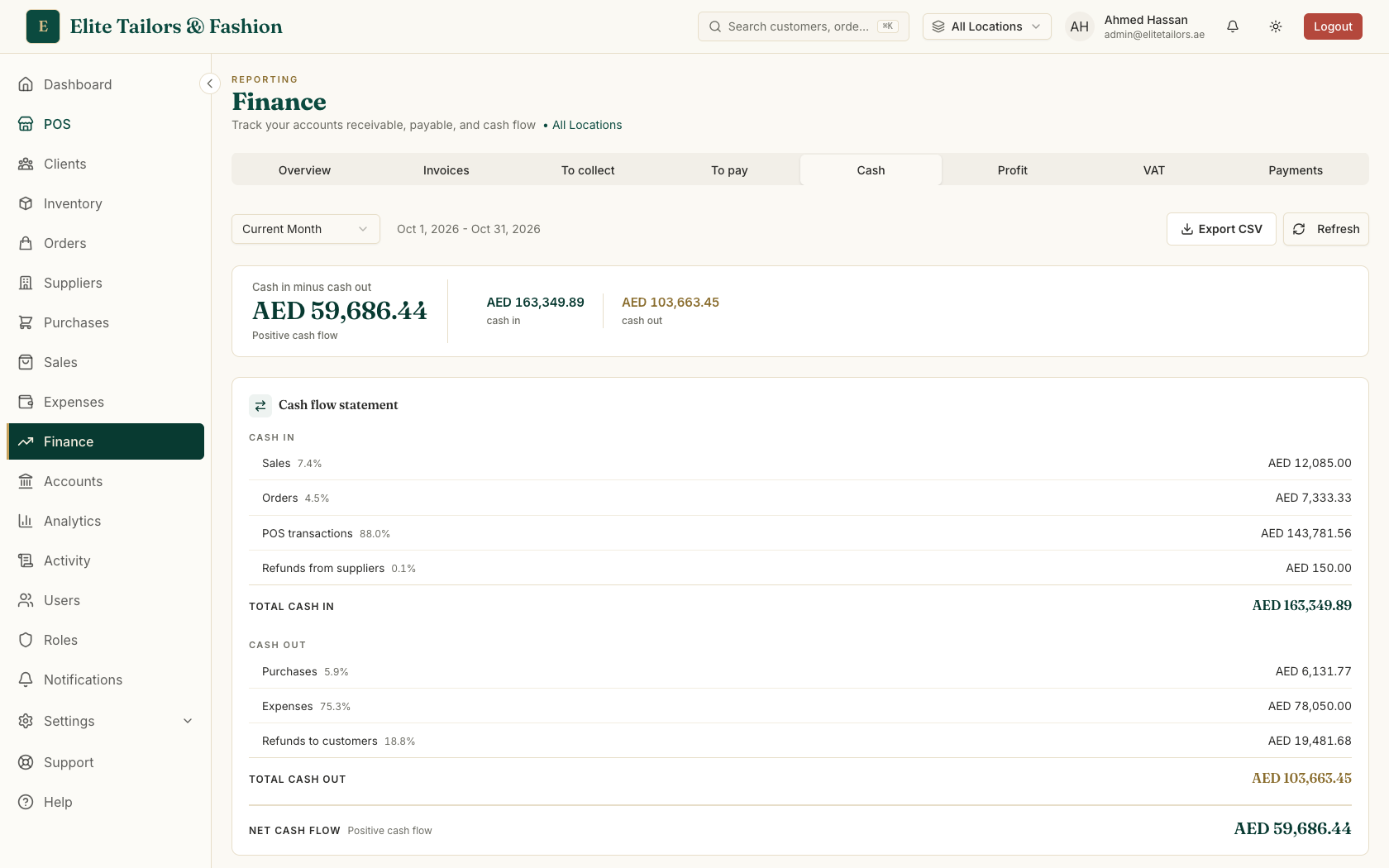
The period starts on Current Month. Open the date filter to pick another, such as Last Month or a VAT quarter, which is handy when you are preparing the return in How to file your UAE VAT return.
Profit: what you kept
Click Profit. Net profit is what is left after the cost of what you sold and your running costs, with the margin shown under it. The Profit summary lists each line from revenue down to net profit. The figures leave VAT out, because VAT is not yours to keep.
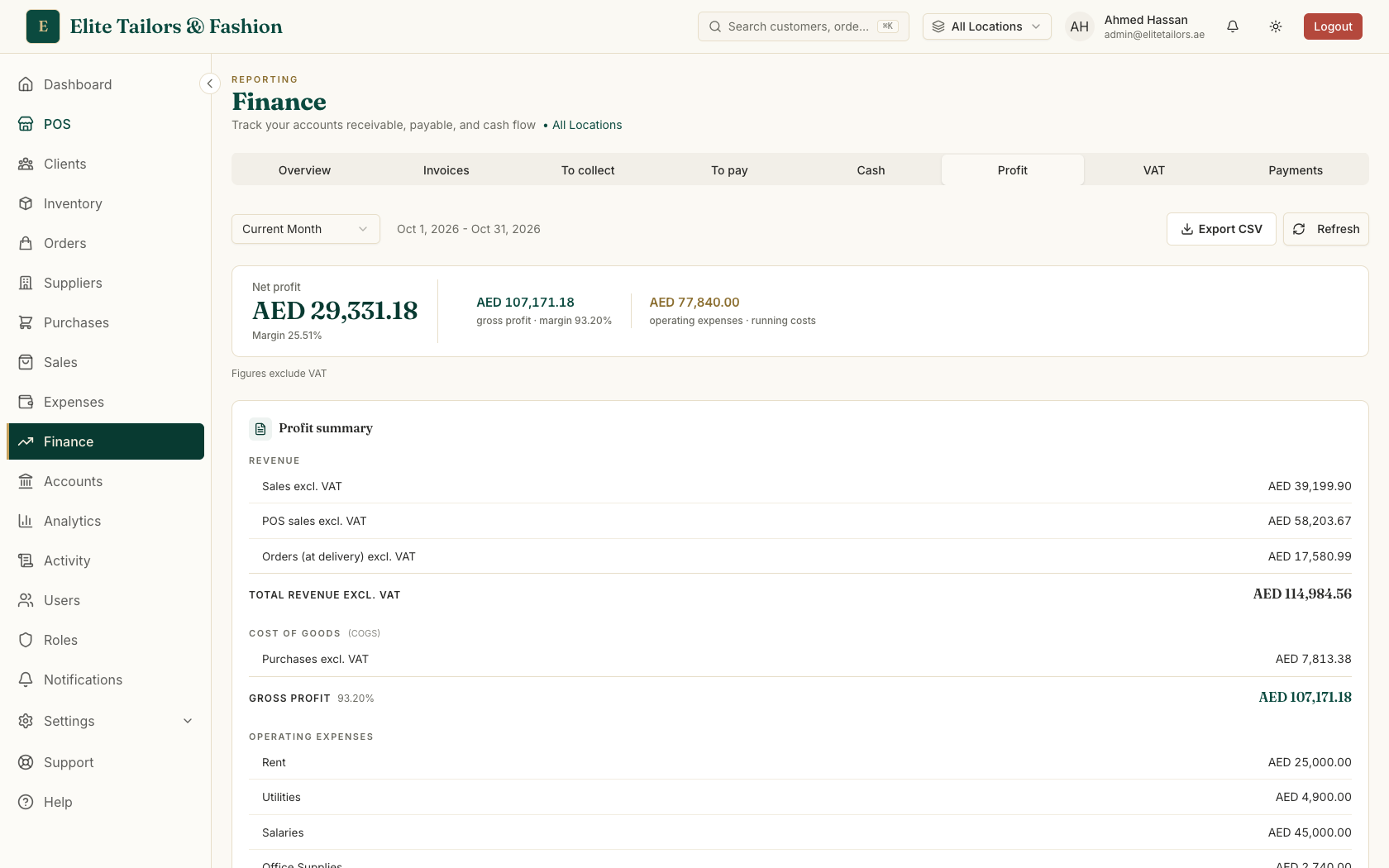
Read both tabs. Cash flow shows money that moved. Profit shows what the month earned after costs, with VAT left out.
Trends in Analytics
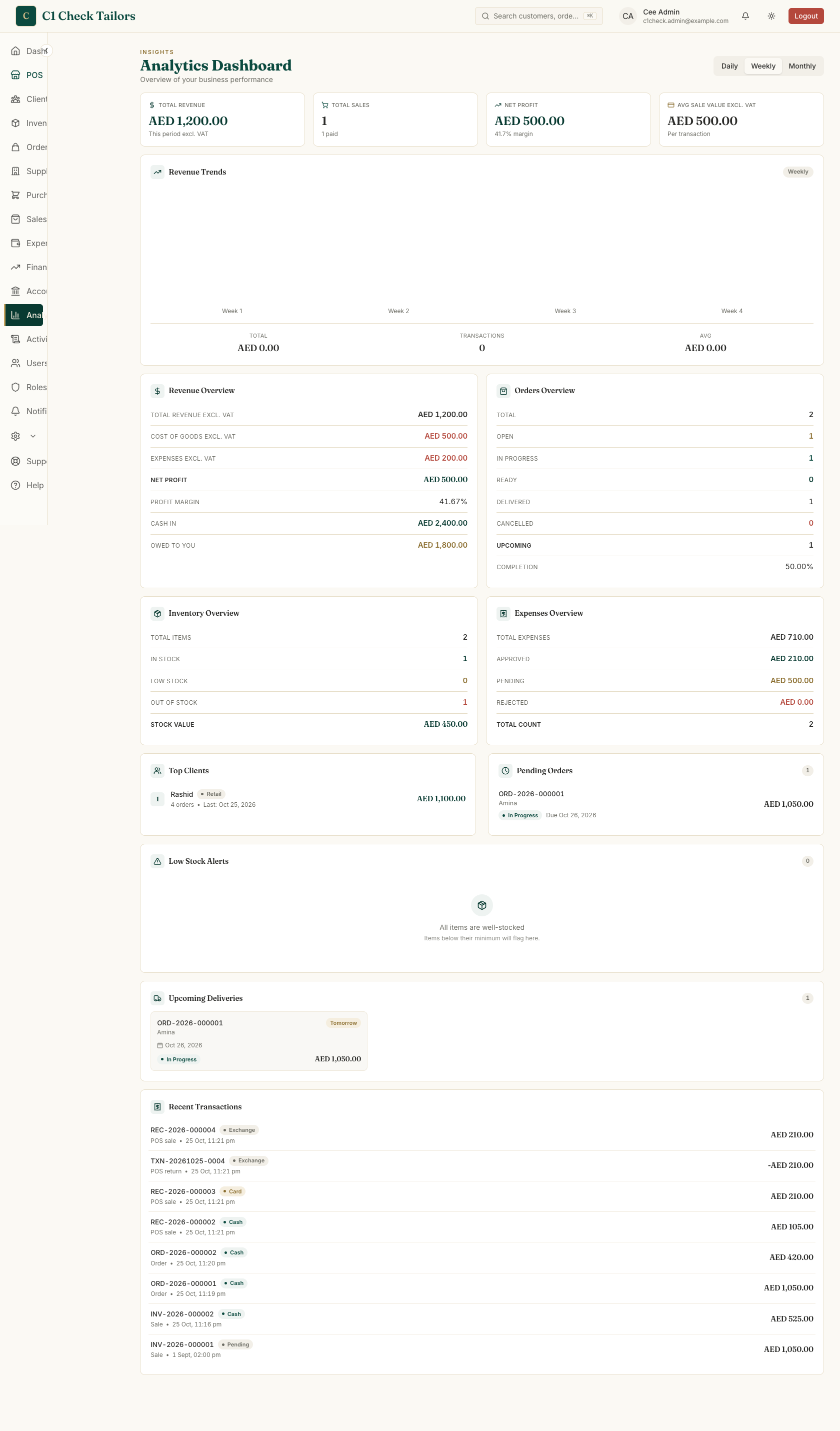
For the shape of the month, open Analytics. Revenue Trends shows this month so far, with a bar for each week. Click Monthly and the figures count the last thirty days instead of the last seven. Below the chart you will find revenue, orders, stock and expenses, and Top Clients shows who spends the most.
Who owes you and who you owe
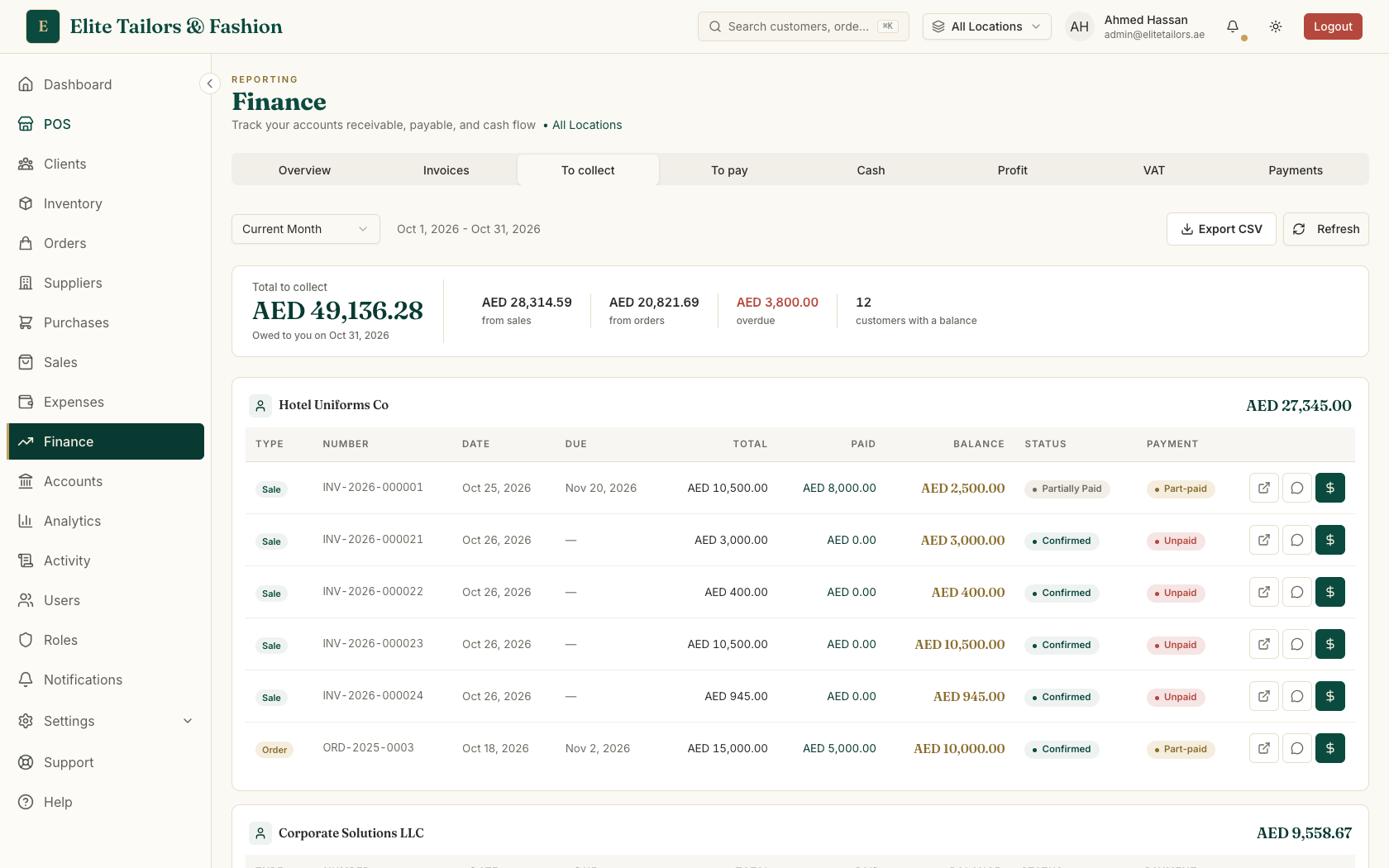
Two more tabs in Finance close the loop. To collect lists everything customers owe you, split into sales and orders, with the overdue part in red. Each customer has a panel showing every invoice and order they still owe on and the balance left on each. A due date in red is overdue. The WhatsApp button on that line opens a message with the invoice number, what is still due and a link to the invoice, ready to send from your own WhatsApp. When they pay, Receive payment on the same line records it.
To pay is the same list the other way round: what you owe your suppliers and what is overdue. Each supplier's panel lists their unpaid purchase orders, and Make payment opens the order so you pay it there. Both lists download as a spreadsheet with Export CSV, ready for your accountant. The video Who owes you and who you owe shows it, and Month-end reports shows the cash, profit and trend screens.
Common questions
Where do I find my monthly profit in TailorSync?
Open Finance and click Profit. Net profit is shown at the top with the margin under it, and the Profit summary lists every line from revenue down to net profit. The period starts on the current month.
Does the profit figure include VAT?
No. The profit figures leave VAT out, because VAT is not yours to keep.
How do I look at last month or a VAT quarter?
Open the date filter at the top of the Finance page and choose Last Month, a VAT quarter or a custom range. The tabs then show that period.
How do I chase an overdue customer invoice?
Open To collect in Finance and find the line with a red due date. The WhatsApp button prepares a message with the invoice number, the amount due and a link, and Receive payment on the same line records the payment when it arrives.
Watch it
Keep reading