How to see who changed what in your shop
The Activity page in TailorSync lists every change made in your shop and who made it, in plain words, with the sign-ins beside it. Open it from the sidebar, pick a period, and you can answer questions like who moved that order to Ready or who edited that price. This guide shows how to read it, and how roles and account status decide who can do what in the first place.
 Watch it · 1:10Keep an eye on the shopSeason 3, Episode 8
The week at a glance
Open Activity and pick a period at the top. The tiles count the changes, the people who made them and the sign-ins. If anyone enters a wrong password, Failed logins turns red and points you to the login history. By module shows where the work happened, such as POS, Orders or Inventory, and Most active staff shows who did it.
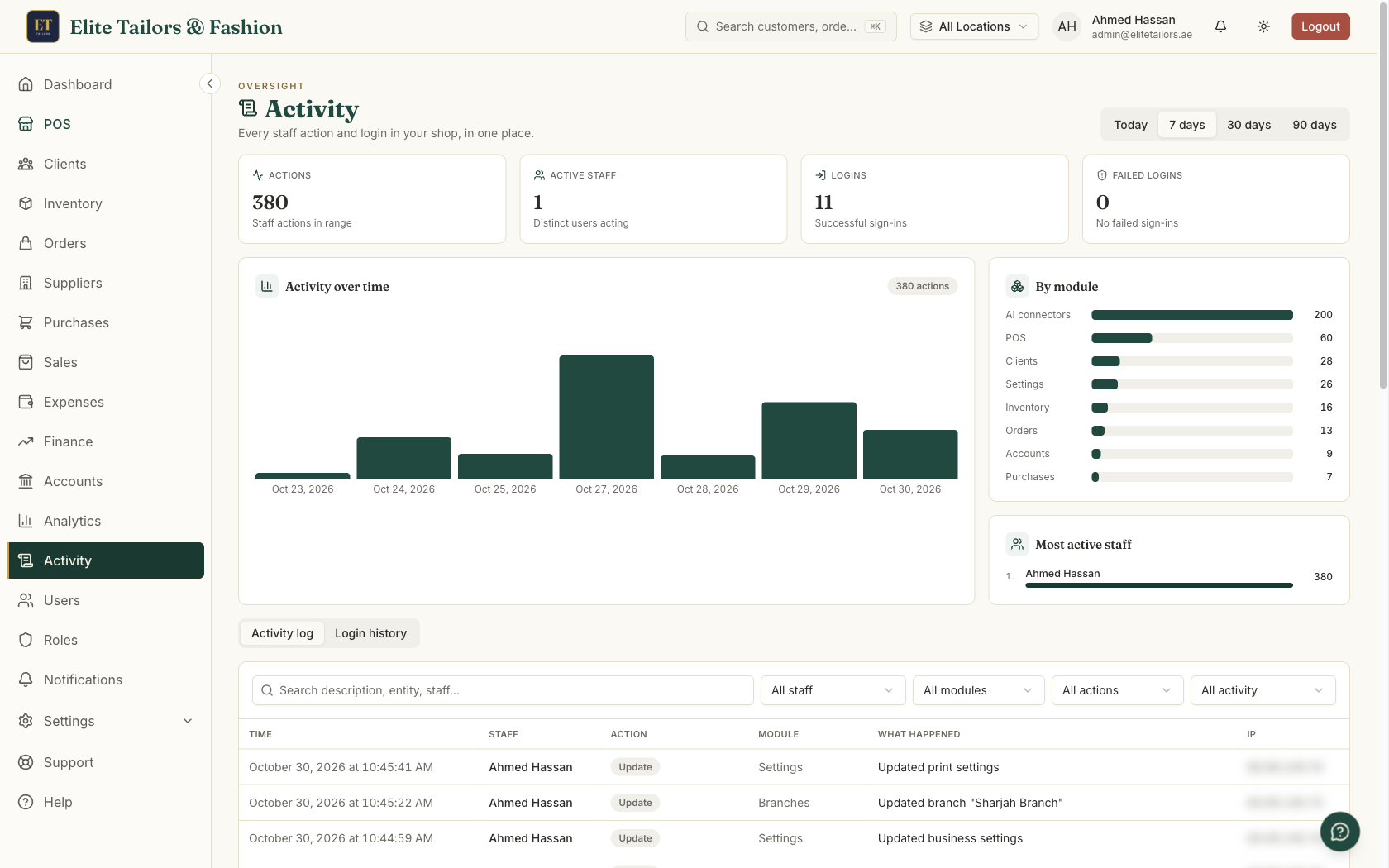
Only roles with the activity:read permission can open this page. Shop admins have it by default, and you can give it to another role from Roles.
Find one change
- 1
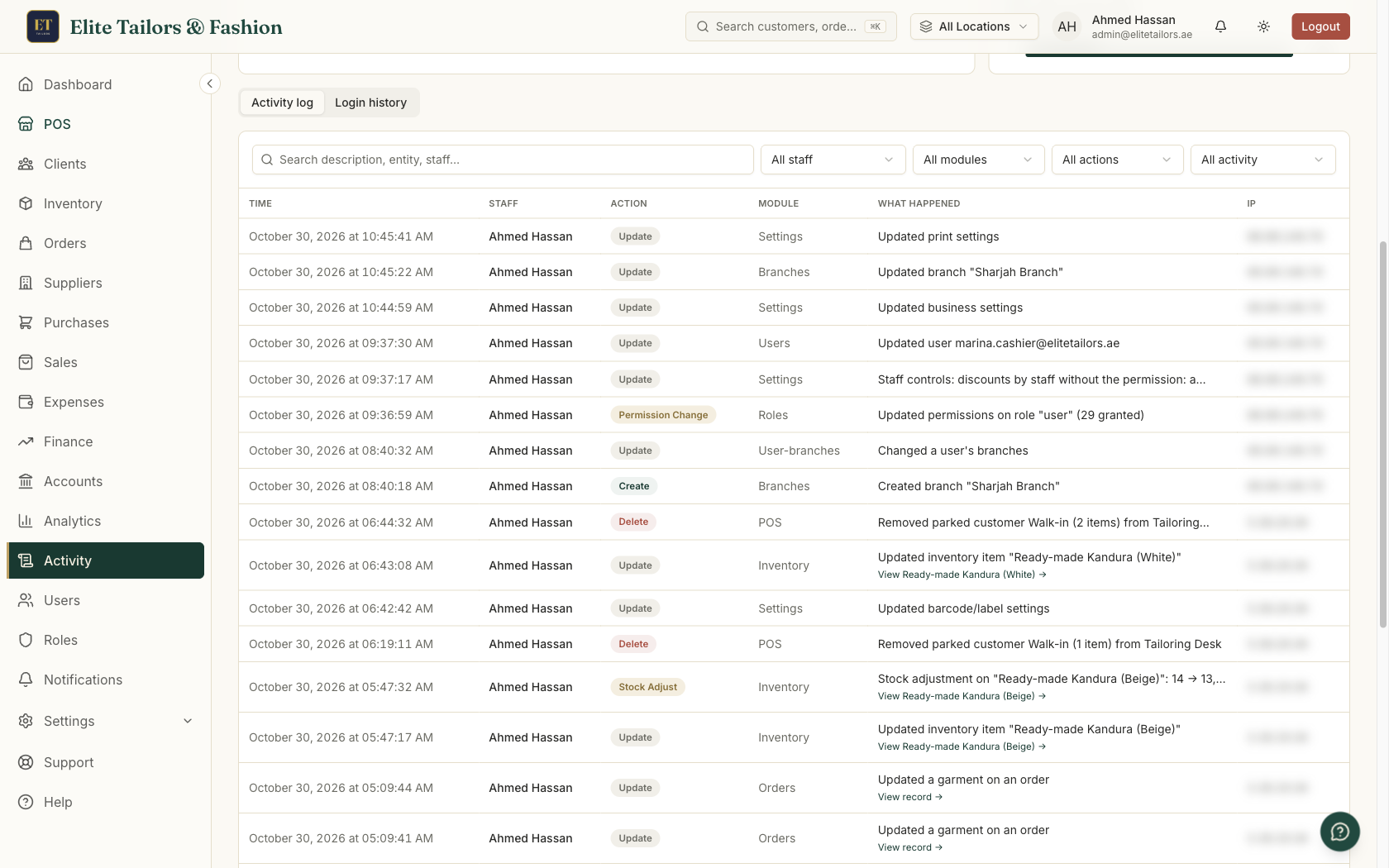
Below the tiles is the log, one line for each change. To check on your orders, pick Orders from the modules list.
- 2
Click any line to open it. You see who made the change, on which device, and what it was before and after.
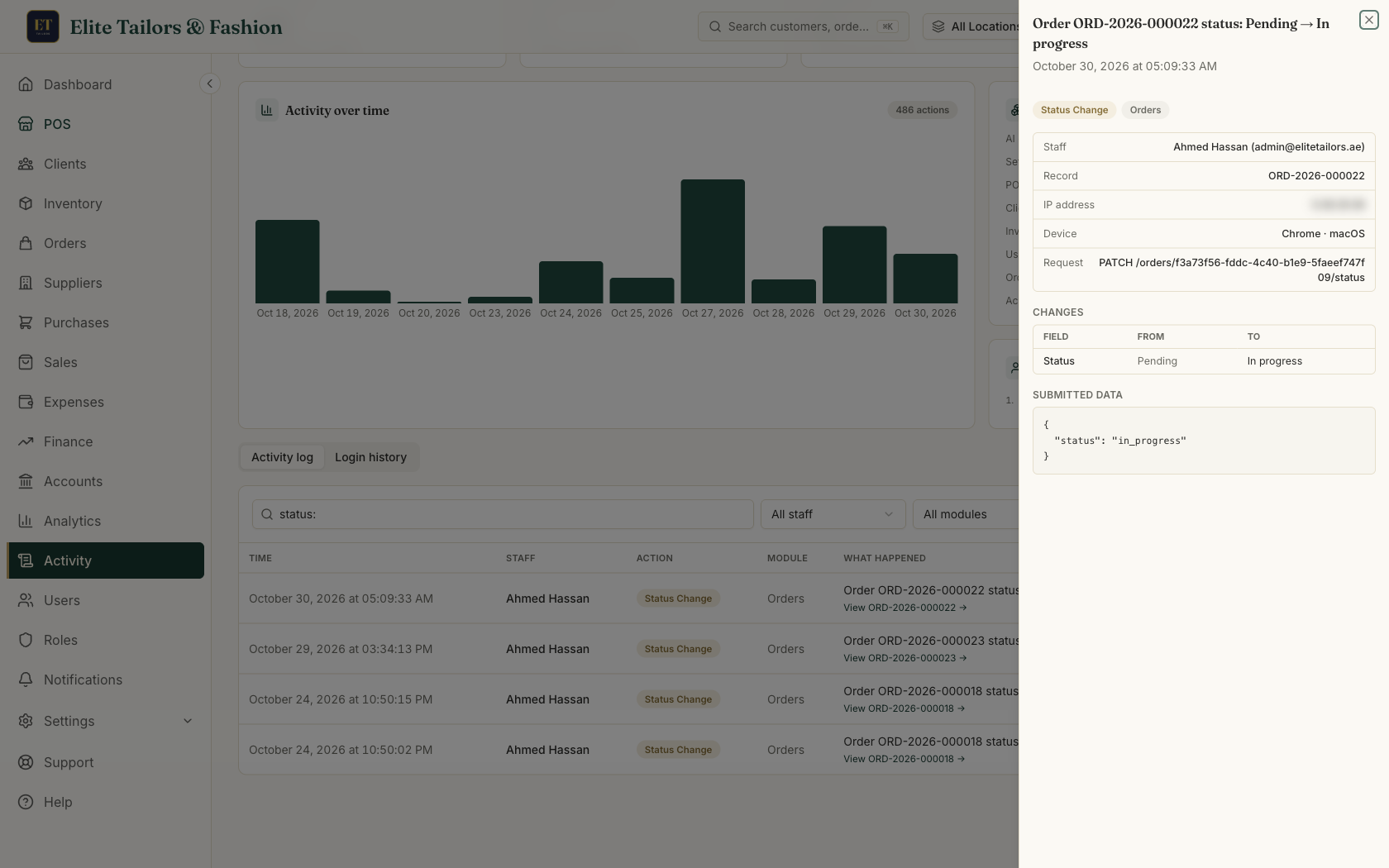
Passwords and other secrets are never kept in the log. They show as [REDACTED].
AI assistant changes and sign-ins
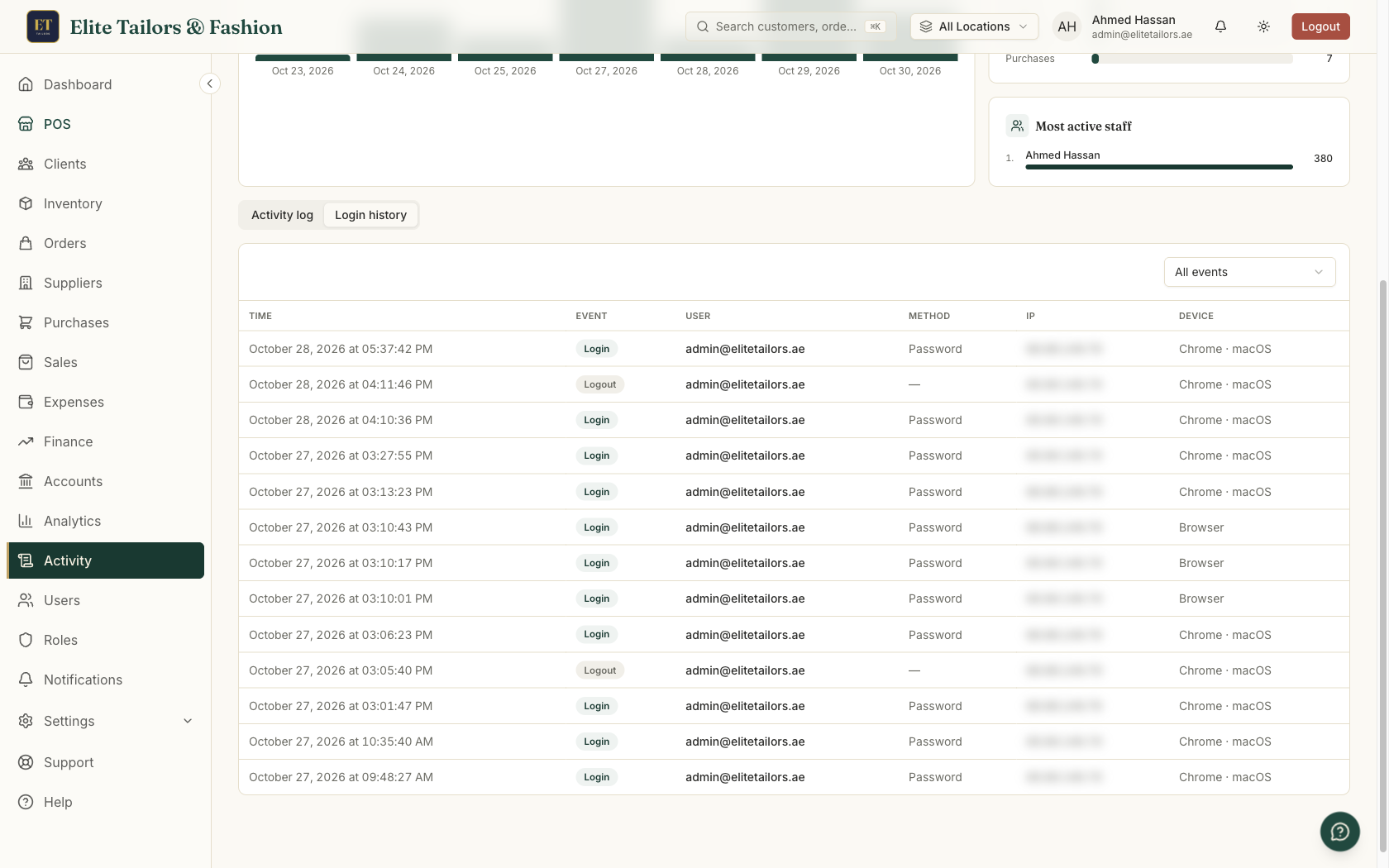
If you have connected an AI assistant to your shop, the changes it makes carry a tag next to the name of the person who connected it. Choose AI assistants only to see just those. Login history lists every sign-in and sign-out with the device it came from, and failed attempts show in red. Several in a row from an address you do not know deserve a look. The video Keep an eye on the shop walks through all of this, and the AI episode Stay in control goes further on assistants.
Decide who can do what
The log tells you what happened. Two pages decide what can happen. Users lists your team, each with a role and a branch. There are three roles: tenant admin has full access, a manager runs the shop day to day, and a user works the counter. Roles sets what each role can do.
- 1
On Roles, click Permissions on the User role. Everything is grouped by area, in plain words.
- 2
Counter staff do not need your finances, so untick View finance module and save.
- 3
For discounts, open Settings, go to Staff controls and choose Ask a manager at the till. Staff can give up to ten percent on their own. Above that, a manager approves it on the cashier's screen with their PIN.
- 4
When someone leaves, keep the account but lock it. On Users, click Edit, open Status, pick Inactive and save. They are signed out everywhere and cannot sign in. Everything they recorded stays.
The video Staff roles and permissions shows each step on screen.
Common questions
How can I see who changed an order in TailorSync?
Open Activity, pick the period, choose Orders from the modules list and click the line. The details show who made the change, on which device, and what the value was before and after.
How do I know if someone is trying to guess a staff password?
The Failed logins tile on the Activity page turns red when anyone gets a password wrong. Login history lists each attempt with its device so you can see whether it is a pattern.
What should I do when an employee leaves?
Set their status to Inactive on the Users page. They are signed out everywhere and cannot sign in again, and everything they recorded stays in your records.
Can I stop counter staff from seeing the finance pages?
Yes. On Roles, open Permissions for the User role, untick View finance module and save.
Watch it
- Season 3, Episode 8: Keep an eye on the shop (1:10 video)
- Season 3, Episode 6: Who can do what (1:25 video)
Keep reading