How to run a tailoring business across several branches
To run a tailoring business across several branches on one system, give each shop its own till and stock, share the inventory and customer list between locations only where you want, and read either the whole business or one branch from a single dashboard. A second shop looks like more of the first until the daily work shows otherwise. Two counters take cash at once, and each needs its own float and its own end-of-day count. The new branch might sell from your existing fabric, or hold stock of its own. A customer measured at one shop may collect from the other. And you, watching from the office, want each location on its own and all of them added together. This guide covers how a tailoring or retail business keeps several branches straight on one account, using TailorSync as the worked example.
What changes when you open a second shop
One shop is simple. Everything you sell, buy, stitch and bank sits in one place, so nothing needs separating. A second branch pulls those easy assumptions apart. Two tills now take cash at once, and each needs its own opening float and its own closing count. The new shop might sell from the same fabric as the first, or carry stock of its own. Someone measured in one branch may collect from the other. And the owner, who used to see the business by opening a single screen, now wants each shop on its own and both added together. Running branches well comes down to answering those questions once and letting the system hold the answers.
Each branch runs its own till
At the counter, every branch keeps its own cash sessions. The point of sale allows one open session per location: a staff member opens the drawer with a starting float, rings the day's sales against it, and closes it with a count that reconciles the cash in the drawer against what was rung up. One branch's open drawer has nothing to do with another's, so two shops can trade at the same time without their tills getting crossed, and each end-of-day reconciliation stands alone. When you read POS takings later, they follow the branch whose session took the money.
Share stock and clients across shops, or keep them apart
This is the choice that shapes the rest. When you add a branch, you set what it shares with the rest of the business, one resource at a time: Inventory Items, Clients, Orders, Suppliers, Services and Categories. A branch that sells from the same store as head office should share inventory, so both counters read one stock list and one running count. An outlet that buys and holds its own goods keeps inventory to itself. The customer list works the same way: share Clients and a person measured in Deira is already on file in Dubai Marina, with their sizing ready; keep clients separate and each shop builds its own book.
Sharing runs two ways, and you set both. A branch can reach the Main Location's resources, and it can offer its own back to Main and to other branches. A new branch starts out sharing inventory, clients and categories from your Main Location, which fits most businesses that grew out of one original store. You change that when a location is meant to stand on its own.
See every branch from one dashboard, or one at a time
You should not have to log in twice to compare two shops. A branch selector sits in the top bar, and whatever you pick recalculates the whole dashboard: the headline numbers, the finance and sales panels, the order and stock counts, the alerts. All branches adds every location into one business-wide view. A single branch, say your Dubai Marina shop, narrows every figure to that place. There is also a Main (head office) option for the original records that were never tied to a branch. A business with one location never sees the selector, because there is nothing to switch between.
Orders and sales, one branch or all
The same branch view carries through the working screens, not only the dashboard. Your orders, sales invoices and stock each read for one branch or for the whole business, so a branch manager can work their own orders while the owner watches all of them. Records carry the branch they were created under, which keeps a sale rung up in one shop counted against that shop. Pick All branches for the combined picture, or a single location to concentrate on one counter.
The branch selector filters what you see, it is not a lock between locations. Anyone in your business with the right access can view any branch's data within your account, so treat branches as a way to keep the screen focused rather than as a wall. The real boundary is your account itself: no other business on TailorSync can ever see any of your branches. If you need to limit what a staff member sees, that comes from their role and permissions, not the branch filter.
Adding a branch depends on your plan
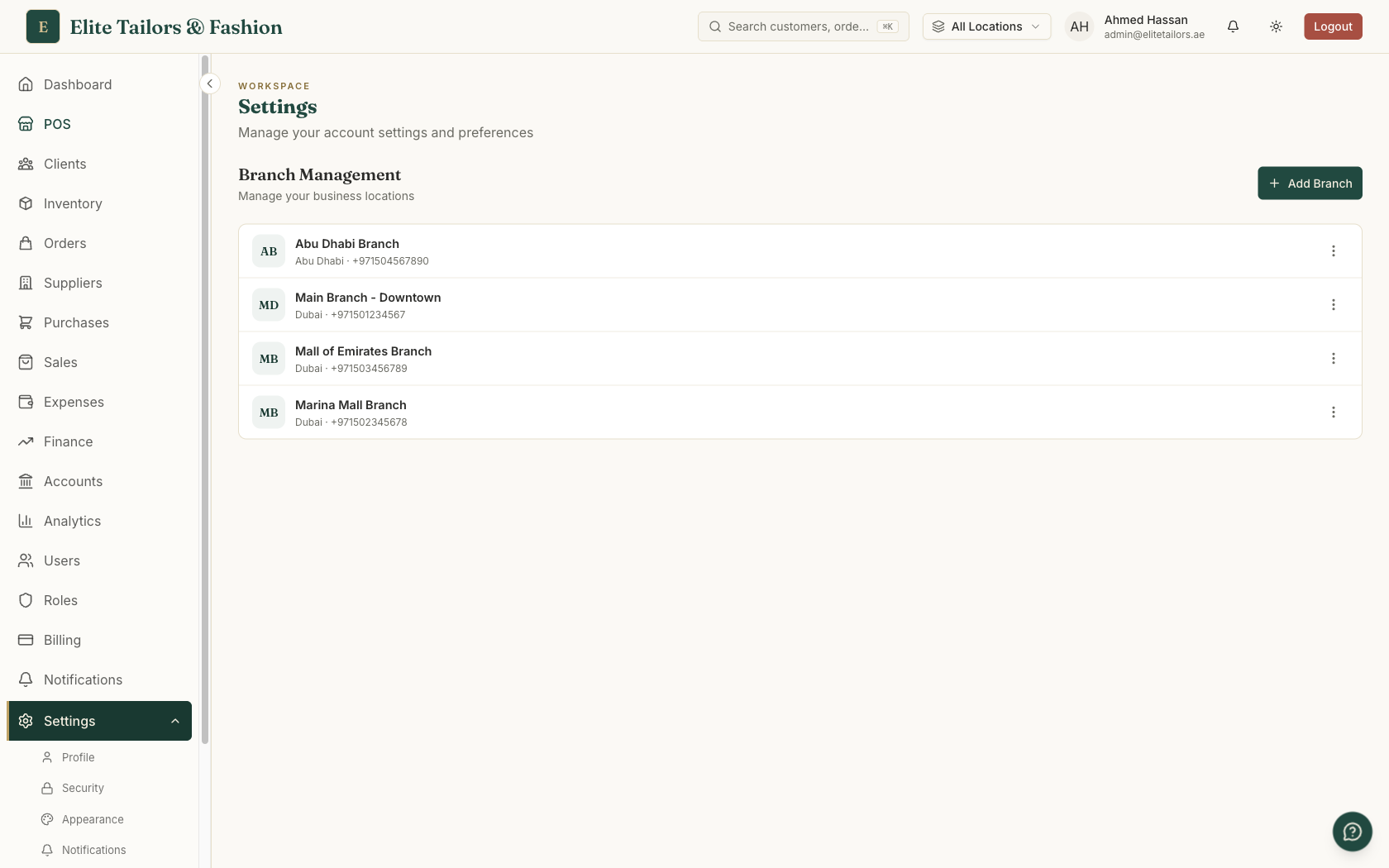
Branches are set up by a tenant admin under Settings, and the section only shows when your plan includes them. If you do not see Branches in Settings, your current plan does not carry extra locations, and moving to one that does is what turns it on. To add a shop, open Settings, then Branches, and choose Add Branch. Give it a name (the one required field), add the phone, email and address you want on that shop's paperwork, and name a branch manager from your staff if you like. Its resource sharing is set in the same form.
Putting staff into a branch happens on the Users page, where each person gets a primary branch. When a location closes for the season, deactivate it rather than delete: a deactivated branch is set aside with its history intact, while delete is permanent.
Start with sharing on. Most shops grow from one store, so letting a new branch share the existing inventory and client list from Main saves re-entering everything twice. Split a resource off later if a location really needs to run its own.
Common questions
How does tailoring software handle running multiple branches?
It keeps every branch on one account while letting each shop run its own till and stock. In TailorSync each location has its own cash sessions at the point of sale, its own stock counts unless you choose to share them, and a branch selector that lets an owner view one shop or all of them combined. The number of locations you can add depends on your subscription plan.
Can each branch have its own cash till and stock?
Yes. Every branch runs its own point-of-sale cash sessions, opened with a float and closed with a reconciliation count, independent of the other shops. Stock is counted per location as well, so a fabric's quantity in one shop is separate from the same fabric in another, unless you deliberately share inventory between them.
Can I share customers and inventory between two shops?
Yes, and you decide resource by resource. When you add a branch you choose whether it shares Inventory Items, Clients, Orders, Suppliers, Services and Categories with your Main Location and other branches. Share clients and a customer measured at one shop is already on file at the other; keep them separate and each branch builds its own list. A new branch shares inventory, clients and categories from Main by default.
Do I need a particular plan to add branches in TailorSync?
Yes. Branch creation is tied to your subscription: the Branches section only appears for a tenant admin when the plan allows extra locations. If you cannot see Branches under Settings, your current plan does not include them, and moving to a plan that does is what unlocks multi-branch operation.
Does picking a branch stop staff from seeing other locations?
No. The branch selector filters the screen for tidiness, it is not a security wall: anyone in your business with the right access can view any branch's data within your account. The real separation is between accounts, so no other business on TailorSync can see yours. To limit what a staff member sees, use their role and permissions rather than the branch filter.
Keep reading